New AI Speech Is Here. Create Natural Voiceovers Instantly with 2,000+ AI Voices.

How to Upload Horizontal Video on YouTube Shorts: Convert Horizontal Video to Vertical for YouTube Shorts

  • Home >
  • Learn >
  • AI Video Creator >
  • How to Upload Horizontal Video on YouTube Shorts: Convert Horizontal Video to Vertical for YouTube Shorts
Last Updated: 2026. 05. 11

With entertaining short-form videos being all the rage, YouTube Shorts also grows in its popularity. It’s a powerful way to reach new audiences, boost engagement, and grow your channel. Since Shorts and regular YouTube videos share on the same platform, many creators wonder: Can I upload existing horizontal video to YouTube Shorts?

To answer this, it’s important to understand YouTube Shorts’ requirements. Since Shorts are optimized for vertical (9:16) mobile viewing, you’ll need to convert horizontal (16:9) videos before uploading them as Shorts. So how to repurpose your existing YouTube content as Shorts? Don’t worry, you’re not stuck with it! This guide will show you step-by-step how to transform horizontal videos into vertical Shorts - whether you're using a mobile device or computer.

Free and Customizable YouTube Shorts Video Templates for You:

Minimalist Breaking News Disaster California Wildfires 2025 Youtube Shorts
Preview
Minimalist Breaking News Disaster California Wildfires 2025 Youtube Shorts
Use This Template
Rhythm Skiing Sport Vlog Social Reels
Preview
Rhythm Skiing Sport Vlog Social Reels
Use This Template
Heartfelt Birthday Wishes For Your Best Friend
Preview
Heartfelt Birthday Wishes For Your Best Friend
Use This Template

Also Interested in: YouTube Shorts Guide | Enjoy, Create, Upload YouTube Shorts Videos>>

Part 1. Upload Horizontal Video on YouTube Shorts with Remix Tool - Mobile Only

If you’re using the YouTube app, you can use YouTube’s built-in Remix tool to convert horizontal video to vertical for YouTube Shorts.

This feature offers various options to clip segments from your uploaded YouTube videos, unlocking new creative possibilities.

With just one tap, you can remix your content in different ways:
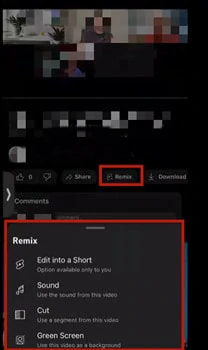
Upload Horizontal Video on YouTube Shorts with Remix Tool

Upload Horizontal Video on YouTube Shorts with Remix Tool

  • Edit it into a Short: Select any part of your video to turn into a Short, with support for up to 60 seconds.
  • Green Screen: Use the video as a dynamic background while recording yourself in real time.
  • Sound: Use the video's sound as a dynamic background while recording yourself in real time.
  • Cut: Take a 1-5 second snippet (with both audio and visuals) and blend it with your new recording.
  • Can’t wait to have a try? Here we’ll guide you through how to convert horizontal YouTube video into vertical Shorts with Remix tool.

    How to Remix Horizontal to Vertical YouTube Shorts on Mobile

    Step 1
    Sign in your YouTube account and go to the long-formed horizontal YouTube video you’d like to convert for Shorts.
    Step 2
    Tap Remix button below the video and choose the creative way you like to take a clip from the YouTube video. Here we set Edit it into a Short as an example.
    Step 3
    Then you’ll be navigated to the screen where you can choose 15 or 60 seconds for the new Shorts. Move the slider to select the part you’d like to use. Once you’re done, tap on Next.
    Step 4
    A simple editor page will appear, providing you basic editing features including adding text, filters, voiceover or adjusting timeline to perfect your Shorts. Go ahead with the Next button.
    Step 5
    Now it’s time for uploading. Add your title, description, hashtags or choose location, visibility field and other settings to categorize your Shorts. When you’re ready, hit on Upload Short to make your content displayed in no time.

    Upload Horizontal Video on YouTube Shorts with Remix Tool

    Part 2. Flexible Tool to Convert Horizontal Video into Vertical YT Shorts Online

    Remix is a workable solution for mobile YouTubers. But what if you're a PC user who wants more flexibility in converting regular YouTube videos into vertical Shorts? That’s where FlexClip, an AI-powered online video editor, comes in.
    FlexClip - FlexClip Tool to Convert Horizontal Video into Vertical YT Shorts Online

    FlexClip - Flexible Tool to Convert Horizontal Video into Vertical YT Shorts Online

    With FlexClip, you can easily resize horizontal videos into vertical Shorts with these key features:

  • Turn horizontal video into reframed YouTube Shorts with face tracking.
  • Convert Shorts videos up to 3 minutes and upload directly to YouTube with one click.
  • Multiple layout options: Crop (with some horizontal loss), keep the full video with a blurred background, or arrange multiple clips for a dynamic vertical look.
  • Enhance with AI tools:
  • AI Highlight Extractor – Automatically pull key moments from long videos.
  • AI Subtitle Generator – Add animated subtitles effortlessly and automatically.
  • AI Music Generator – Create custom sound effects and background music.
  • AI Translator – Replace audio with translated natural-sounding voiceovers.
  • 6,000+ designer-made templates – start your creativity and make your content stand out.
  • How to Convert YouTube Videos to Shorts with FlexClip

    Want to turn a horizontal video into a vertical Short? FlexClip makes it easy! Now let's see the versatile ways offered by this horizontal to vertical converter one by one.

    1) Auto-convert Horizontal Video to Vertical YouTube Shorts with AI Reframe

    The first way to turn a widescreen video into Shorts-ready content is by using FlexClip’s AI Long-to-Short generator. Powered by AI, it automatically analyzes the video audio, identifies the most engaging moments, and intelligently reframes the footage with face tracking to keep the subject perfectly centered throughout the process. The generated clips are optimized for YouTube Shorts and ready to share without any manual adjustments.
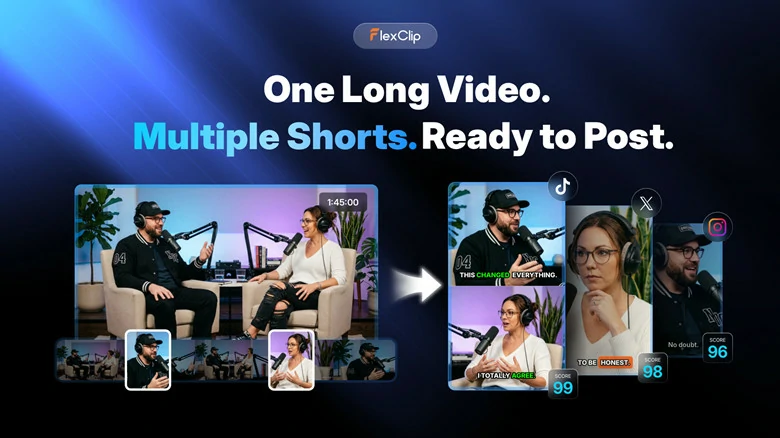
    FlexClip's Long-to-short YouTube Shorts Generator

    FlexClip's Long-to-short YouTube Shorts Generator

    Simply tap Turn Long-to-short button below and learn how to convert horizontal video to Shorts-ready clips:

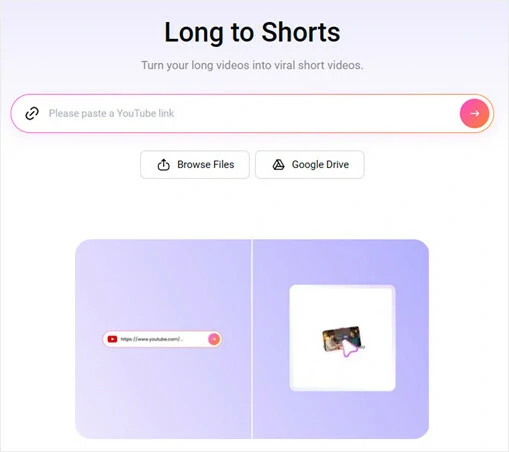
    Turn Long to Short
    Step 1
    Firstly, upload the horizontal you want to convert into vertical. Here FlexClip allows you to import one by uploading from local file, loading from Google Drive or even pasting its link.
    Import Video to FlexClip's Long-to-short Generator
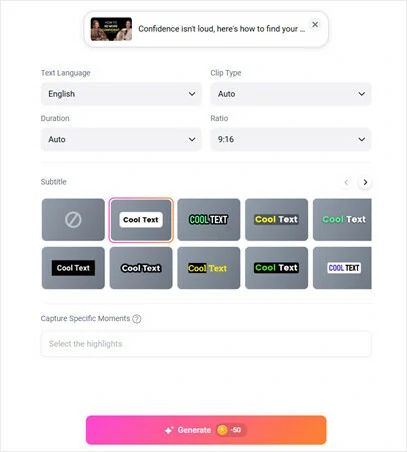
    Import Video to FlexClip's Long-to-short Generator

    Step 2
    Once it's loaded, you will be navigated to the Setting page. From there you can adjust the setting and guide AI to convert video into vertical clips as you wished way. Choose the aspect ratio as 9:16 and select the text language, duration, clip type and subtitle layout as needed.
    Make Basic Setup of the Converted Vertical Video
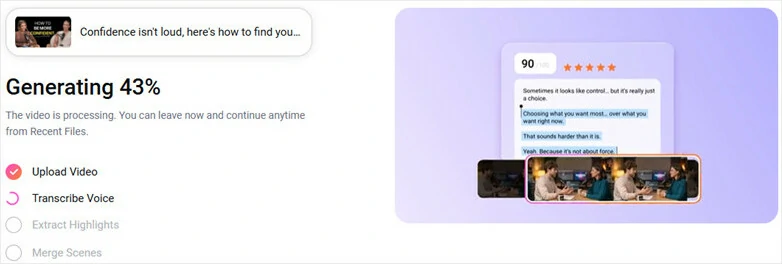
    Make Basic Setup of the Converted Vertical Video

    Step 3
    Click the Generate button, and the AI will do the rest — automatically analyzing your video and transforming it into engaging, bite-sized Shorts clips. With AI reframing and face tracking, the subject stays perfectly focused in every frame. Plus, catchy hook titles, virality scores, and performance insights help you quickly identify the clips with the highest viral potential.
    Generate Clips with Hook Titles and Virality Score
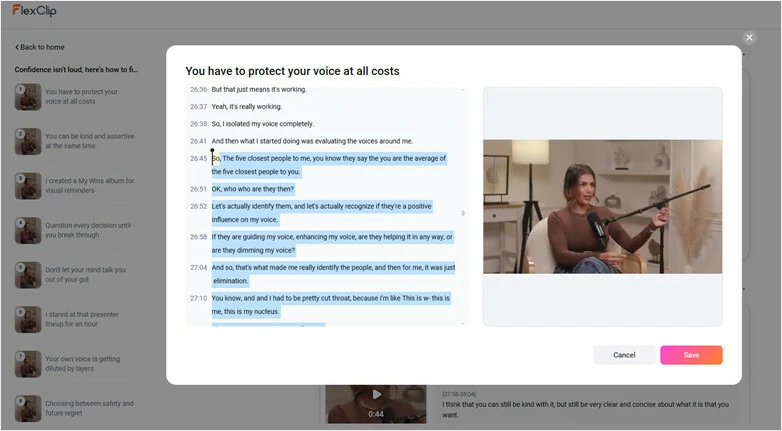
    Generate Clips with Hook Titles and Virality Score

    Step 4
    Now you can preview all the clips in new aspect ratio. If you prefer a fully reframed video instead of short clips, Simply tap Trim button to review the script and select the entire duration from start to finish. The AI will then recreate the full video in vertical format, while still keeping face tracking and auto-caption features enabled.
    Preview the Reframed Clip and Manually Adjust the Duration If Needed
    Preview the Reframed Clip and Manually Adjust the Duration If Needed

    Step 5
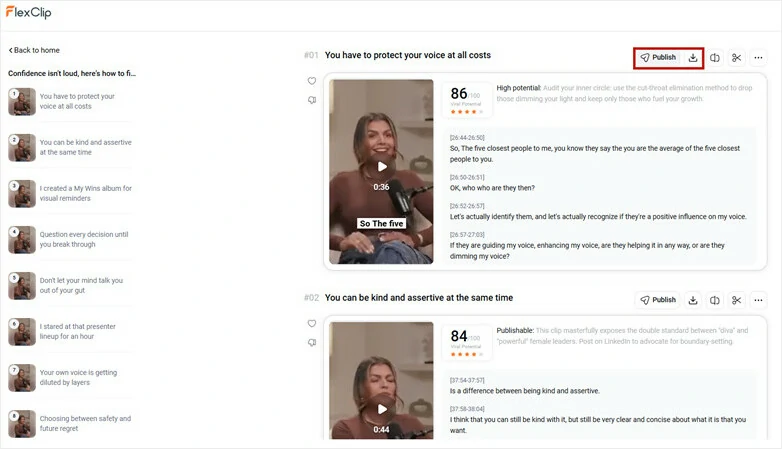
    When satisfied, tap Publish button to directly share your Shorts-ready clip on Shorts or click on Download to save this vertical video on local file
    Publish Shorts-ready Directly or Download Vertical Video to Local Folder

    Publish Shorts-ready Directly or Download Vertical Video to Local Folder

    2)Convert Horizontal YouTube Videos into Vertical by Cropping

    Changing aspect ratio is another way to crop horizontal YouTube videos into vertical for Shorts. Here, FlexClip offers various predefined aspect ratio options including 16:9, 9:16, 1:1, 4:5, 3:4, 2:1 and even 21:9 for wide screen effects. Quickly select 9:16 aspect ratio to crop landscape videos into vertical in one click.
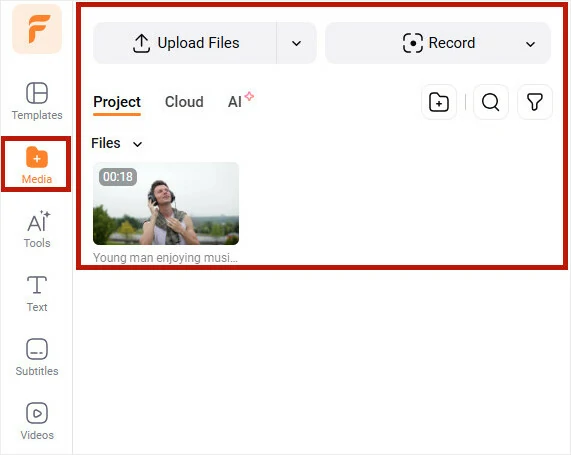
    Step 1
    Access FlexClip’s editor and upload your YouTube videos from computer, mobile, Google Drive, Google Photos, etc.
    Upload Horizontal YouTube Video to FlexClip
    Upload Horizontal YouTube Video to FlexClip

    Step 2
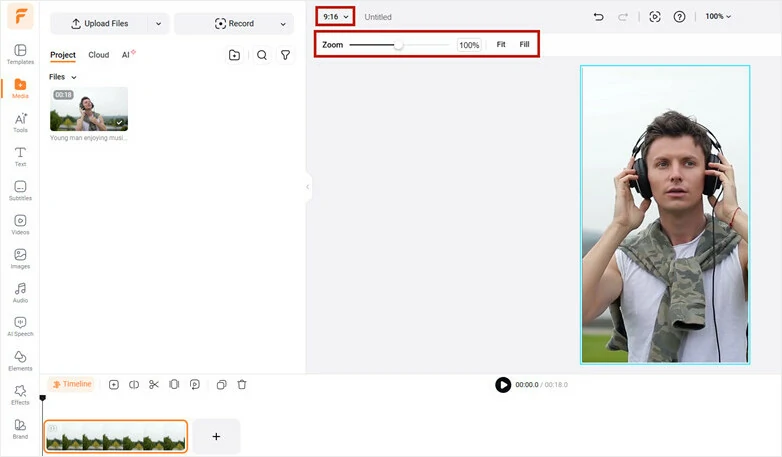
    Move to the aspect ratio icon above the toolbar and choose 9:16 to make your video vertical. Then add or drag and drop your video onto the canvas to fit the screen. If the cropped result doesn’t look ideal, simply zoom in or adjust the frame to keep the main subject centered and visually appealing.
    Select the Aspect Ratio to 9:16 Option
    Select the Aspect Ratio to 9:16 Option

    Step 3
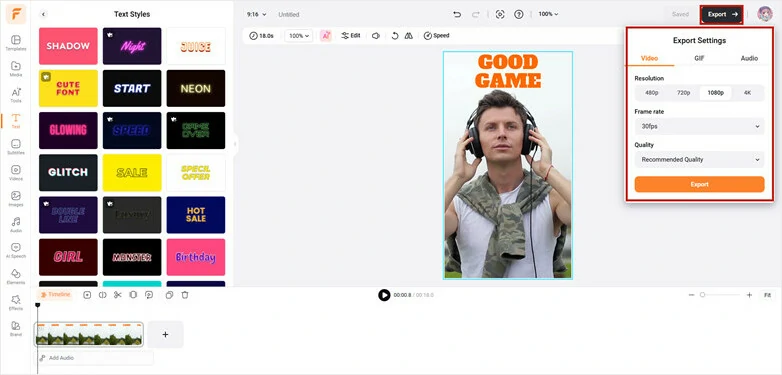
    Add text, filters, music or special effects to enhance your Shorts. When you’re ready, tap on Export to save the Shorts and seamlessly upload the video to YouTube Shorts.
    Refine the Cropped Video and Make More Edits

    Refine the Cropped Video and Make More Edits

    3)Turn Landscape Video into Portrait Shorts by Blurring Background

    Cropping is easy but it cuts out part of your video scenes. Want to keep the full horizontal video in vertical format yet adding some aesthetic flair? Add blurred or stylized background to replace the default black bars with stylish version. Check the guide below to make it for you.
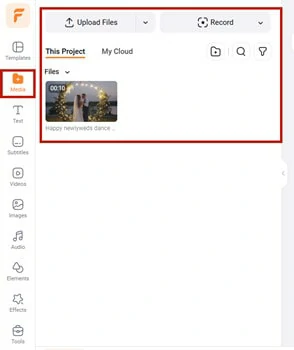
    Step 1
    Open FlexClip’s editor and import the horizontal video you’d like to convert to vertical format.
    Import the Horizontal YouTube Video

    Import the Horizontal YouTube Video

    Step 2
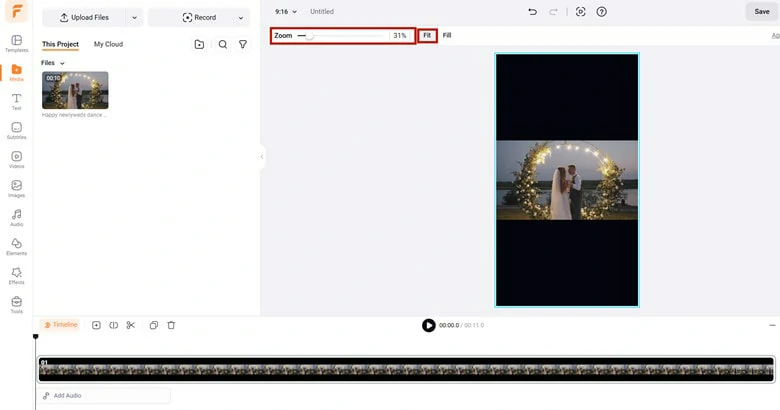
    Set the aspect ratio as 9:16, add the video to timeline and click the Zoom > Fit to ensure all the horizontal video displayed.
    Crop the Video into Vertical and Change the Zoom Portion to Display All the Horizontal Video

    Crop the Video into Vertical and Change the Zoom Portion to Display All the Horizontal Video
    Step 3
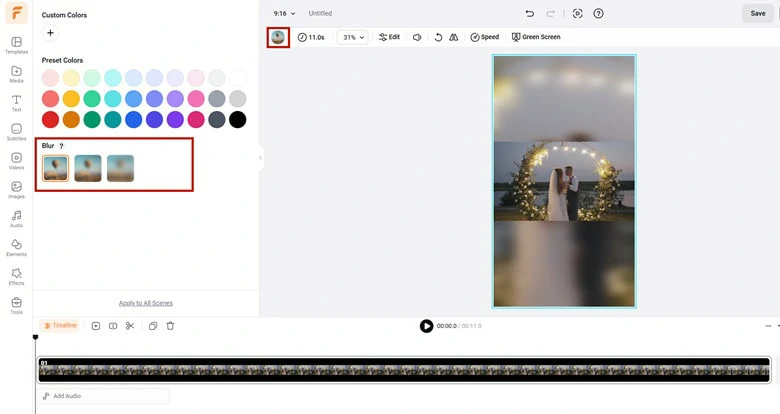
    Now you’ll see black bars on the top and bottom empty part. To fill the empty space of the canvas with a blurred background effect, move to Background Color and enable the Blur effect that fits the style of your video.
    Replace the Black Bars of Your Vertical Video with Background Blurred Effect
    Replace the Black Bars of Your Vertical Video with Background Blurred Effect

    Step 4
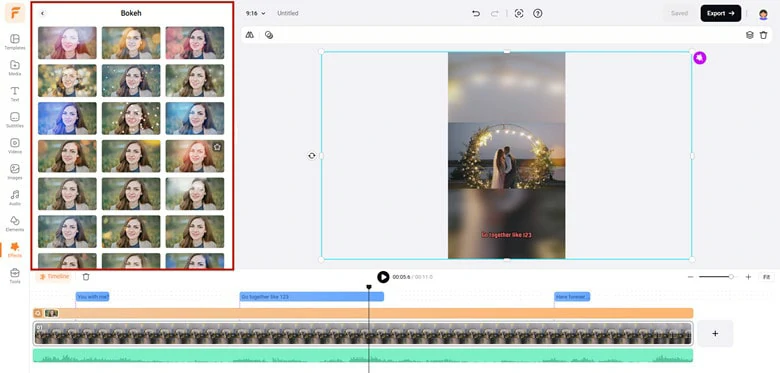
    To make your Shorts more engaging and dynamic, add animated subtitles using FlexClip’s AI subtitle generator, insert funny stickers or perfect the videos with special effects.
    Engage the Vertical Video with More Personal Edits

    Engage the Vertical Video with More Personal Edits

    Step 5
    Once finished edits, hit on Export button to save the changes and share your video to YouTube in no time.

    4)Layer Your Horizontal Video into a Split-screen Vertical Video

    Need more creativity for vertical Shorts? Collage multiple clips to form a split-screen vertical video for engaging viewing. Here is how to make it.
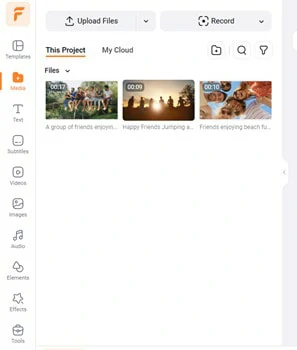
    Step 1
    Set the aspect ratio to 9:16 and import the landscape video. Split the long video into three short clips for split-screen viewing or directly use the entire video with pairing other images.
    Split the Long Video into Several Parts
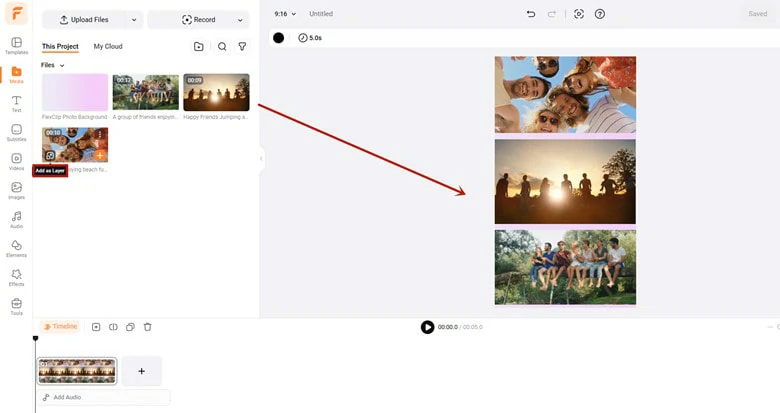
    Split the Long Video into Several Parts

    Step 2
    Modify the background to your liking by changing the color, layering appealing image or video background. Then click the Add As Layer icon to add it to the Timeline as an video overlay, then adjust its size, location, motion, and more. Repeat until all the clips are added to the canvas.
    Layer These Videos to Form a Vertical Video Collage
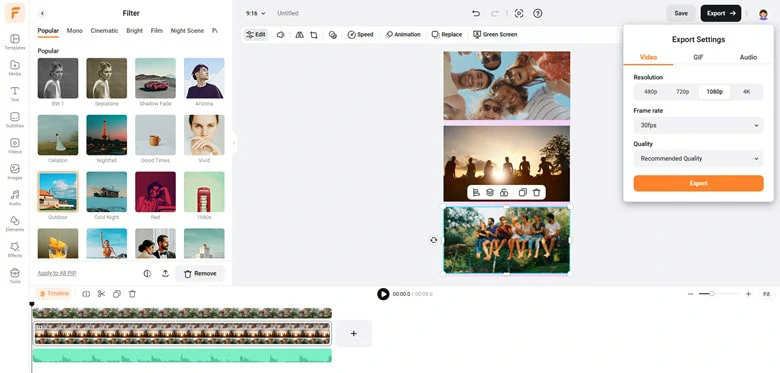
    Layer These Videos to Form a Vertical Video Collage

    Step 3
    Once the video collage is ready, customize by adding music, text, filter and other effects to make the vertical Shorts more professional and personal. When finished, export the video and post it to Shorts.
    Customize the Video Collage as You Like

    Customize the Video Collage as You Like

    Part 3. Frequently Asked Questions

    1.How to upload a vertical video on YouTube without it being a Short?

    If a vertical video meets criteria as below, YouTube will classify it to YouTube Short:

  • The video duration is less than 3 minutes(formerly it’s 60 seconds).
  • It has the #shorts in its title and description.
  • The video is in portrait/vertical mode.
  • To ensure your vertical video uploads as a standard video (not a Short), avoid meeting all of these conditions.

    2.How to watch Shorts as normal video?

    Want to watch Shorts as normal video for better viewing experience? Fortunately, there are different ways you can try to change Shorts into normal video

  • Manual URL editing (a quick tweak to switch the view)
  • Using YouTube timestamps (to skip the Shorts player)
  • Utilizing the like button (saves the video for later in your playlist)
  • Installing a browser extension (forces standard video playback)
  • For more details, check this article: 4 Ways to Watch Shorts as Normal Video>>

    3.What is the best AI YouTube Shorts generator?

    To speed up your YouTube Shorts creation with AI, FlexClip is a top choice. Its intuitive interface offers a range of AI-powered tools to craft engaging Shorts effortlessly.

    Just have an idea? Bring your vision into reality with a simple text prompt via FlexClip’s AI video generator;

    Want to enhance your photos? Transform them into dynamic, eye-catching videos with custom animations by using FlexClip's AI image to video tool.

    Need to trim long videos? FlexClip’s AI Highlight tool automatically extracts the best moments for standout Shorts.

    With FlexClip, AI unlocks endless creative possibilities for your Shorts.

    Group 11
    Make a free video online
    Create Your First Video With FlexClip Now
    Get Started - Free