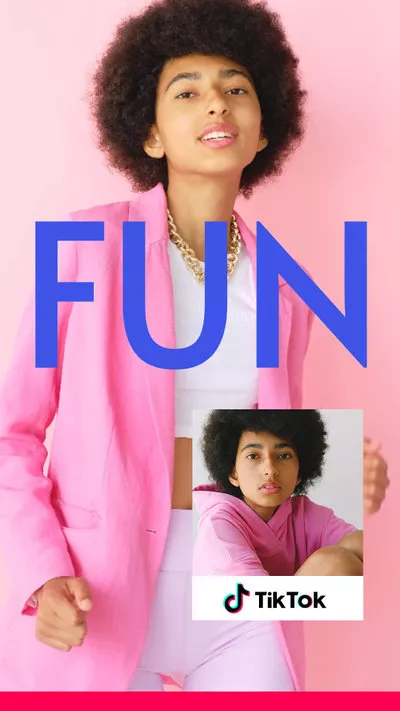
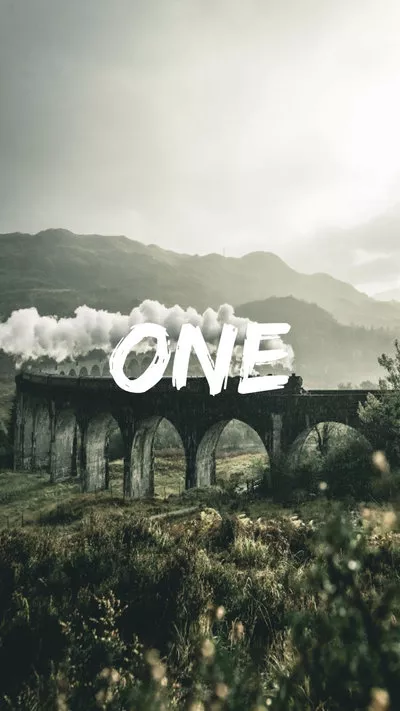
Nowadays, most social media platforms—such as Instagram, Pinterest, Facebook, and TikTok—favor portrait or vertical videos. If you create landscape (horizontal) content and want to share it on these platforms, converting your videos to a vertical format is essential.
In this article, we'll introduce FlexClip, a powerful online tool for transforming landscape videos into portrait format. We’ll show you how to convert your videos using both its AI-powered features and traditional editing tools. Let's dive in.

Can't Miss: iMovie Vertical Video with Black Bars? How to Fix? >
How to Convert Landscape Video to Portrait in Different Ways
There are several ways to convert a landscape video into a portrait one, and FlexClip is a top choice. This online landscape-to-portrait video converter offers different solutions to turn horizontal videos into vertical format on Windows, macOS, or any platform through a web browser—no downloads or software installations required.
FlexClip is a powerful tool for both beginners and pros to convert landscape videos into portrait format in just a few clicks. It combines traditional editing tools with AI-powered features, making it easy to optimize your videos for platforms like TikTok (9:16), Instagram (1:1 or 4:5), and YouTube (16:9).
Now, let's check the methods below to learn how to make a landscape video portrait in different ways with FlexClip.

Method 1 Auto-Convert Landscape Video into Portrait with AI Reframe
First, we'll introduce FlexClip's AI long to shorts tool to you. It can automatically reframe videos with AI-powered face-centered framing to help you convert a landscape video into portrait format, ensuring your videos are perfectly centered and adjusted, ready for different social media platforms without any manual adjustments needed.
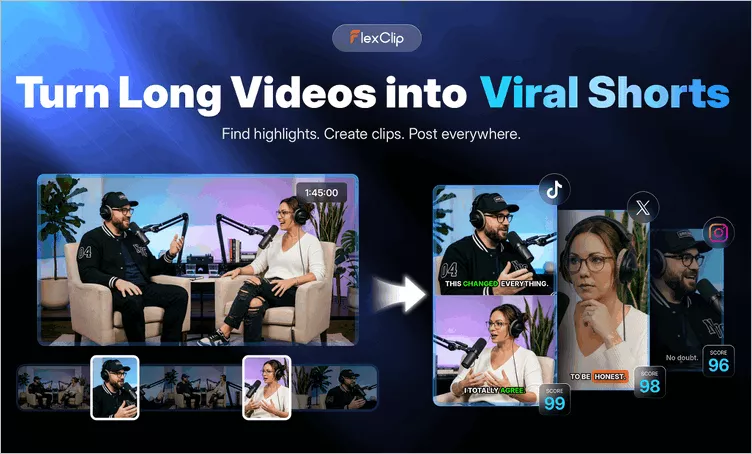
Auto Landscape Video to Portrait Converter - FlexClip Long to Shorts Tool
Now, let's check the detailed steps below to learn how to convert a landscape video into portrait format with FlexClip AI Reframe feature:
Step 1 Open FlexClip's Long to Shorts Maker
Click the Convert Landscape Video with AI button above to access FlexClip's Long to Shorts Maker, then upload the video you'd like to convert into a portrait one. Here, you can directly convert a YouTube video by pasting its link, upload a video from your local file or even import a video from your Google Drive.
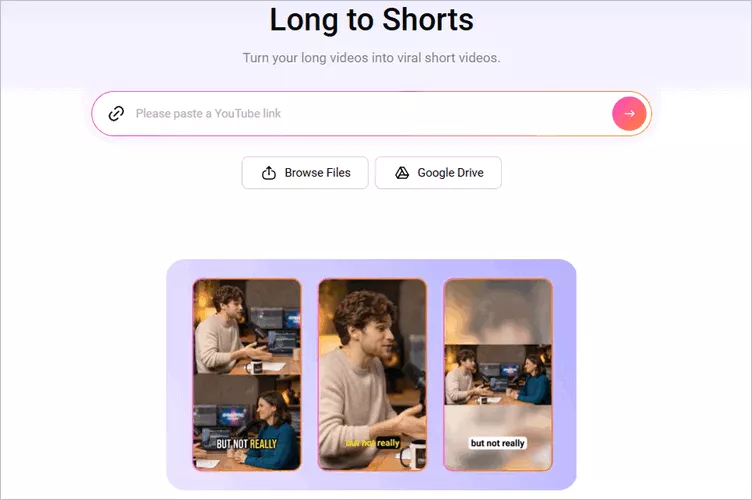
Auto-Convert Landscape Video into Portrait with AI - Access FlexClip's Long to Shorts Maker
Step 2 Adjust the Setting for Your Video
Once loaded, FlexClip will automatically take you to the setting page, where you can adjust the settings and guide the AI to convert the landscape video as you wish. Select the aspect ratio as 9:16 or any you want, and then choose the language, clip type, subtitle style and more as you need.
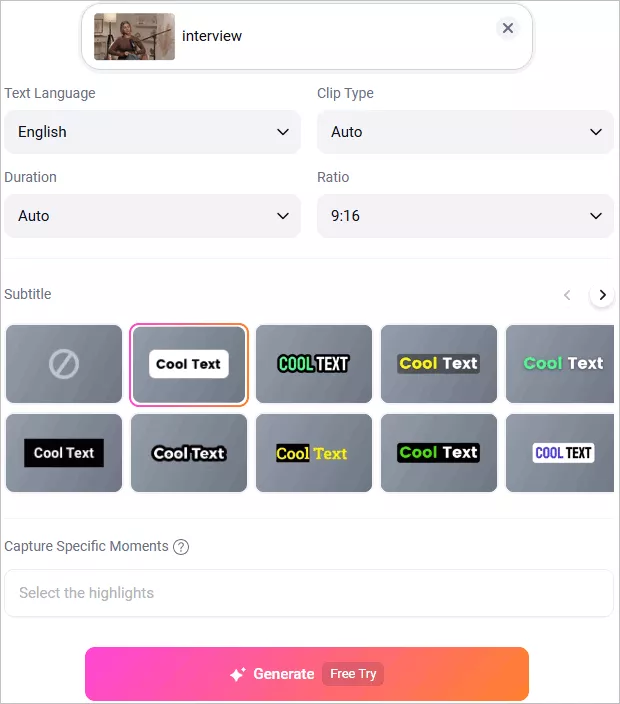
Auto-Convert Landscape Video into Portrait with AI - Adjust Portrait Video Setting
Step 3 Convert Landscape Video to Portrait with One Click
Once selected, click the Generate button to start the conversion. FlexClip AI will automatically transform your landscape video into bite-sized clips in the ratio your selected by analyzing the video, detecting the most engaging moments, and reframing each segment so the face or main subject stays centered throughout.
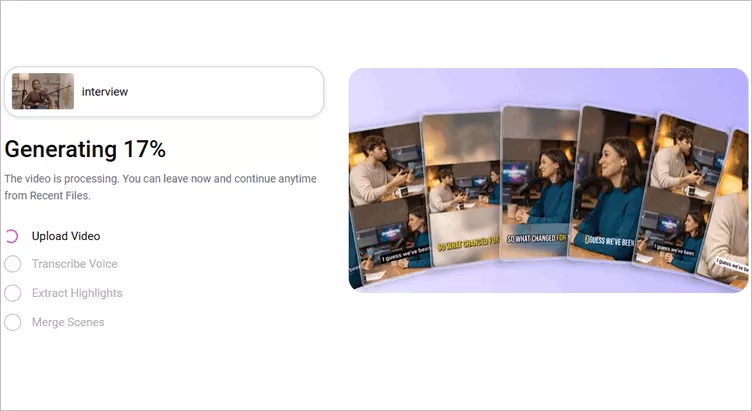
Auto-Convert Landscape Video into Portrait with AI - Convert Landscape Video to Portrait with One Click
Step 4 Edit and Download the AI-Converted Clips
Once generated, you can preview all the short clips in new aspect ratio. Prefer a fully reframed portrait video instead of short clips? Simply click the Trim button to review the transcript and select the entire duration from start to finish. The AI will then recreate the full video in portrait format, while still keeping face tracking and auto-caption features enabled.
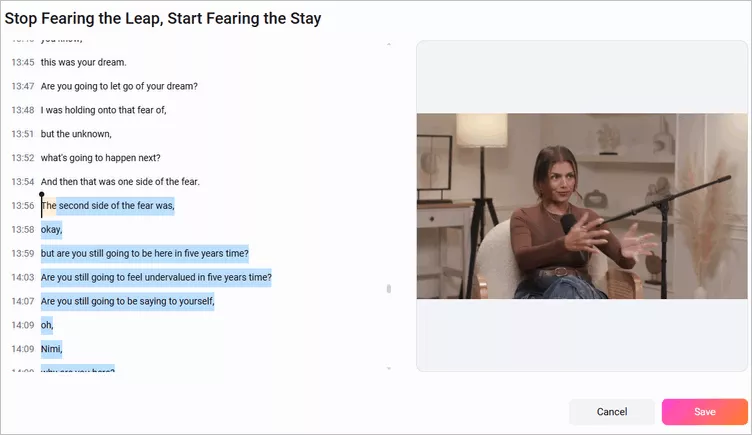
Auto-Convert Landscape Video into Portrait with AI - Select and Trim Clip
Once satisfied, you can choose the clips you like or the re-generated full reframed portrait video to download or share it to social media platforms directly. Click the download button to save the new video to your device; to publish the video, connect your social media platform accounts first, then use AI to write captions and share your clips effortlessly.
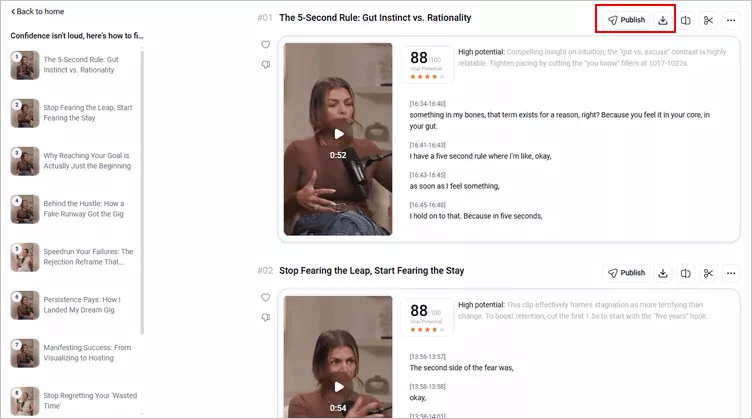
Auto-Convert Landscape Video into Portrait with AI - Download & Share Clip
Method 2 Change the Aspect Ratio and Crop Landscape Video into a Portrait One
Changing the video aspect ratio manually is another method to crop a landscape video to portrait. FlexClip offers various predefined aspect ratio choices such as 9:16, 1:1, 4:3, 3:4, 16:9, and even the 21:9 for widescreen effect. You can quickly pick a predefined aspect ratio to crop the landscape video into a portrait one.

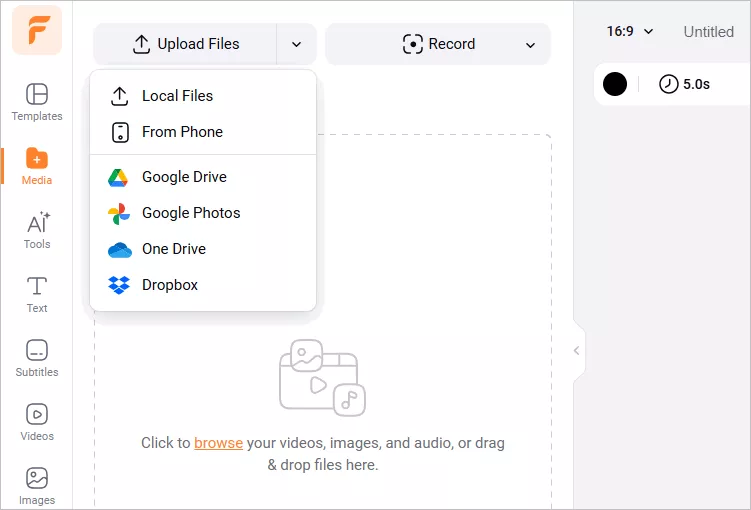
Convert Landscape to Portrait with FlexClip - Upload
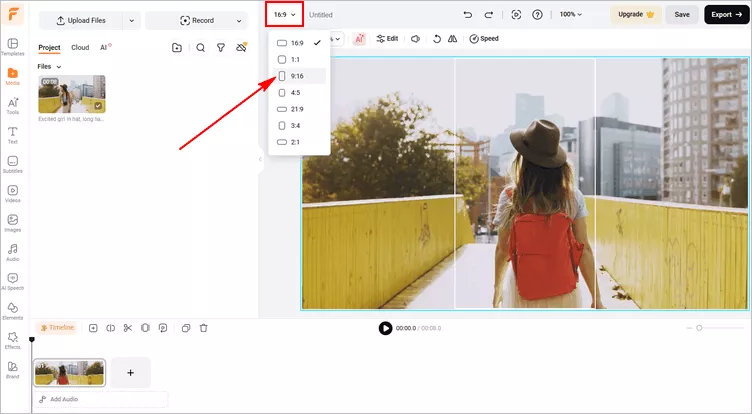
Convert Landscape to Portrait with FlexClip - Select Ratio
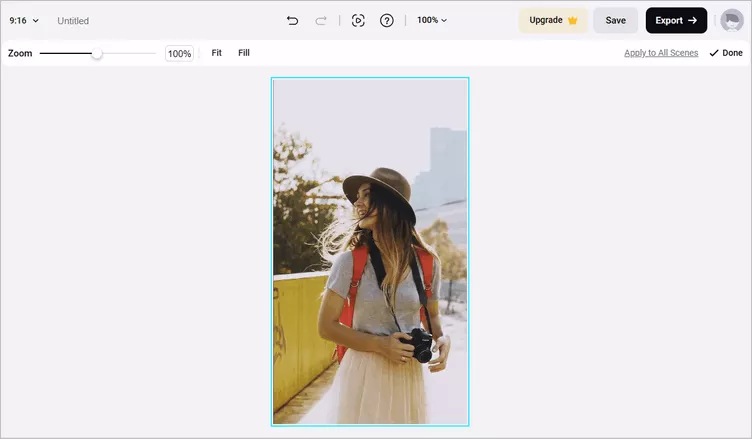
Convert Landscape to Portrait with FlexClip - Adjust
Pro Tip: Although changing the aspect ratio makes it pretty easy and quick to turn a landscape video into portrait, it cut out parts of your video scene. So if you want to make a landscape video into portrait without quality loss, you can try FlexClip's flexible PIP feature to collage your landscape video with a simple color background, picture, or even blurry background to make the video a vertical viewing, just like the examples below.
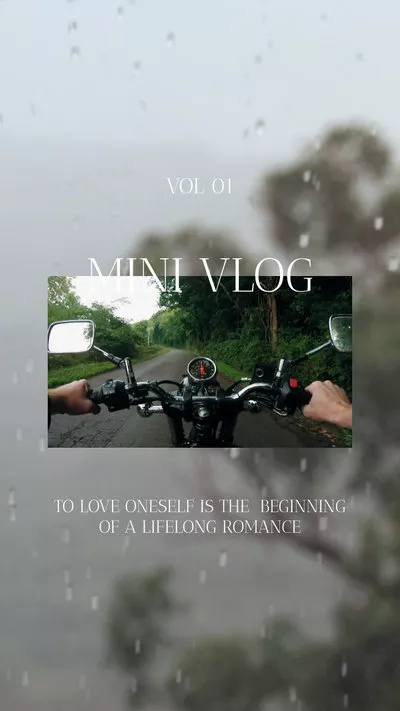
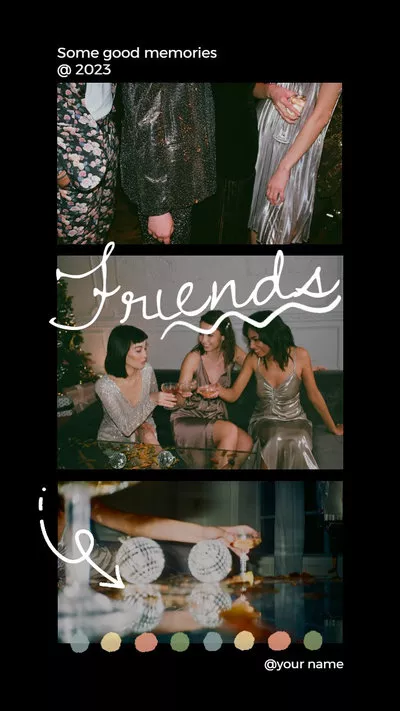
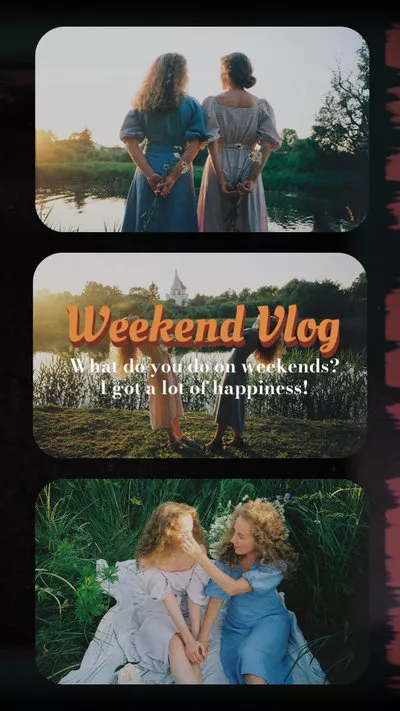
By the way, more than an effective landscape to portrait video converter, FlexClip can help you do more, like add text animations, adjust video speed(normal speed change and speed curve), and split and trim the video, etc. Feel free to try them out!
Final Words
With the easy-to-use online landscape to portrait video converter, FlexClip, you can easily make a landscape video to a portrait one without learning video editing skills or downloading and installing an application. Just pick your desired way to turn your landscape video to portrait for Instargam and more social media platforms.




FlexClip AI Video Maker
Reach professional-quality videos faster with easy editing tools, templates, and smart AI.
Start Now for Free
Hot & Trending
-

Best Ways to Find Music in YouTube Videos
-

Instagram Story Video Quality Bad After Upload? Fix It!
-

How to Repost Video on TikTok & How to Remove TikTok Repost
-

Improve Video Quality Online: 3 AI Video Quality Enhancers You Can't Miss
-

4K Convert to HD 1080p without Watermark: Best 4k Video Converters
-

Best 8 Free Video Editors - No Download Required
-

Top 13 Birthday Video Makers with Music and Effects Free
-

How to Search Filters on TikTok & Use a Filter You See - TikTok Filter Guide